Why your embroidery file won't open
An embroidery file usually fails to open because it is the wrong format for the machine, has the wrong extension or file name, was not copied completely, or is larger than the hoop. Check those in order before suspecting a damaged file.
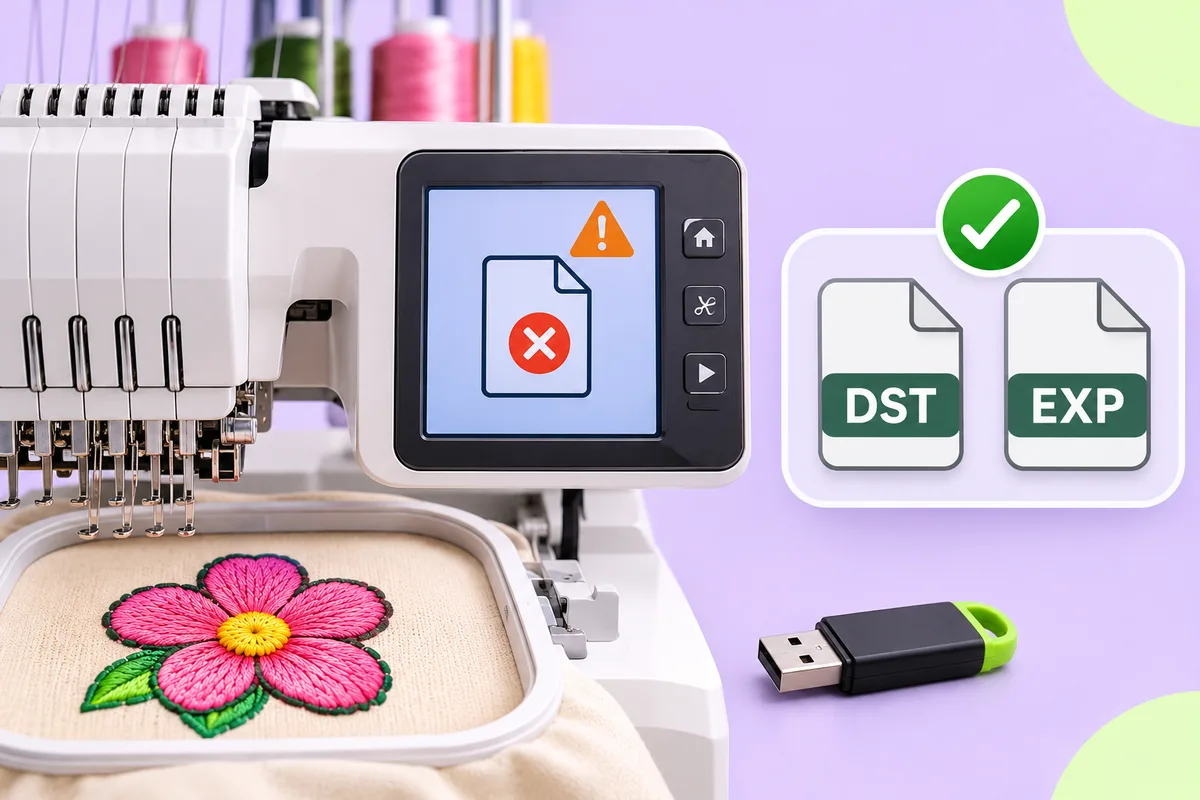
You copy a file to your computer and nothing happens. It doesn't appear, displays an error, or loads incorrectly. This problem is common and usually has a simple cause. Follow these troubleshooting steps in order.
Step 1: Is it the right format?
The machines read specific formats. A file that is not in a format recognized by your machine will not be loaded, even if it looks like an embroidery file. DST and EXP are two common formats. See What is an EXP file? and Embroidery file formats explained.
How to find out what your machine reads:
- Check the manual or the settings menu.
- Look at the files already on the machine.
- Ask the supplier.
Step 2: Is the extension correct?
Make sure the file name ends with the correct extension. If the extension was changed or lost during download, the computer may not recognize it. Renaming a file does not convert it. A PNG file renamed to DST is still an image.
Step 3: Is the file name acceptable?
Some machines have limits on file names. Long names, spaces or special characters can cause trouble. Try a short name with letters and numbers only.
Step 4: Is the storage device the problem?
Many machines are fussy about USB drives.
- Try a different, smaller drive.
- Format it using the type your machine expects.
- Put the file in the main folder, not in nested folders.
- Do not keep too many files on it.
Also check that the drive is properly connected and that the machine is set to read from it.
Step 5: Did the transfer finish?
An incomplete copy can produce a damaged file. Copy it again, wait until the transfer finishes, and eject the drive safely.
Step 6: Is the design too large?
A design bigger than the machine's hoop or stitch area may be refused or shown with an error. Check the design size against the hoop you plan to use.
Step 7: Is the file itself damaged?
If the file opens on a computer but not the machine, or fails on both, regenerate it. Convert the artwork again and download a fresh copy.
Step 8: Does the machine read this version?
Even in the right format, some machines handle details differently, such as trim commands and colour stops. If the file loads but behaves strangely, see Embroidery file formats explained.
Check before you sew
Once it opens, look at the design on the machine screen and compare it with your preview. See Prepare a logo for embroidery.
Automatic results can need editing, so always test-sew on a scrap of similar fabric before a real run.
A troubleshooting order
If you want a short routine, follow this order and stop as soon as the file loads:
- Confirm the format your machine reads.
- Rename the file to something short, with letters and numbers only.
- Copy it to a different, smaller USB drive, in the main folder.
- Check that the design fits the hoop.
- Create a fresh file from the original artwork and try again.
Changing one thing at a time tells you which step fixed it. If you change everything at once, you will not know what worked, and the problem may come back next time.
Keep notes for next time
Once you've identified the settings supported by your machine, make a note of them: the format, the drive type, the file naming style, and the maximum file size. These notes will save you a lot of guesswork later, especially if several people use the same machine.
Where to start
Confirm your machine's format first, then create a fresh file. Upload your artwork to the converter on this site at /upload, choose DST or EXP to match, and copy it to a clean drive.
Frequently asked questions
Can I rename a file to change its format?
No. Renaming only changes the name. The file contents stay the same.
Why does my machine not see the file?
Check the format, the file name and the USB drive. Machines can be picky about all three.
Why does it open on my computer but not my machine?
The machine may not read that format, or the drive or file name may be causing the issue.
What if the design is too big?
Reduce its size or use a larger hoop, if your machine supports one.